> ## Documentation Index
> Fetch the complete documentation index at: https://docs.seosorted.ai/llms.txt
> Use this file to discover all available pages before exploring further.
# Framer
> Publish articles into your Framer CMS collection with a project API key.
The Framer connector writes each article as an item in a CMS collection of your Framer site,
using Framer's Server API. It works with the collection your blog already uses — including
`/blog` — so there's no plugin to install and no manual sync.
## Before you start
* You need **edit access** to the Framer project. API keys act as the person who created them.
* Decide which collection articles go into. If your project has a blog collection already, we
use it. If the project has no collections at all, we create one called **SEOsorted Blog**.
## Step 1 — Copy the project URL
Open the project in Framer and copy the address from your browser. It looks like
`https://framer.com/projects/My-Site--aBcDeFgHiJkLmNoPqRsT`.
## Step 2 — Create an API key
In Framer, open **Site Settings → General**, scroll to **API Keys**, and create a key. Name it
**SEOsorted** so you can recognise it later, and copy it.
The key is bound to this one project and to your Framer account. If you leave the team or
delete the key, publishing stops until someone reconnects with a new key.
## Step 3 — Connect in SeoSorted
**Project Settings → Integrations → Framer → Connect**.
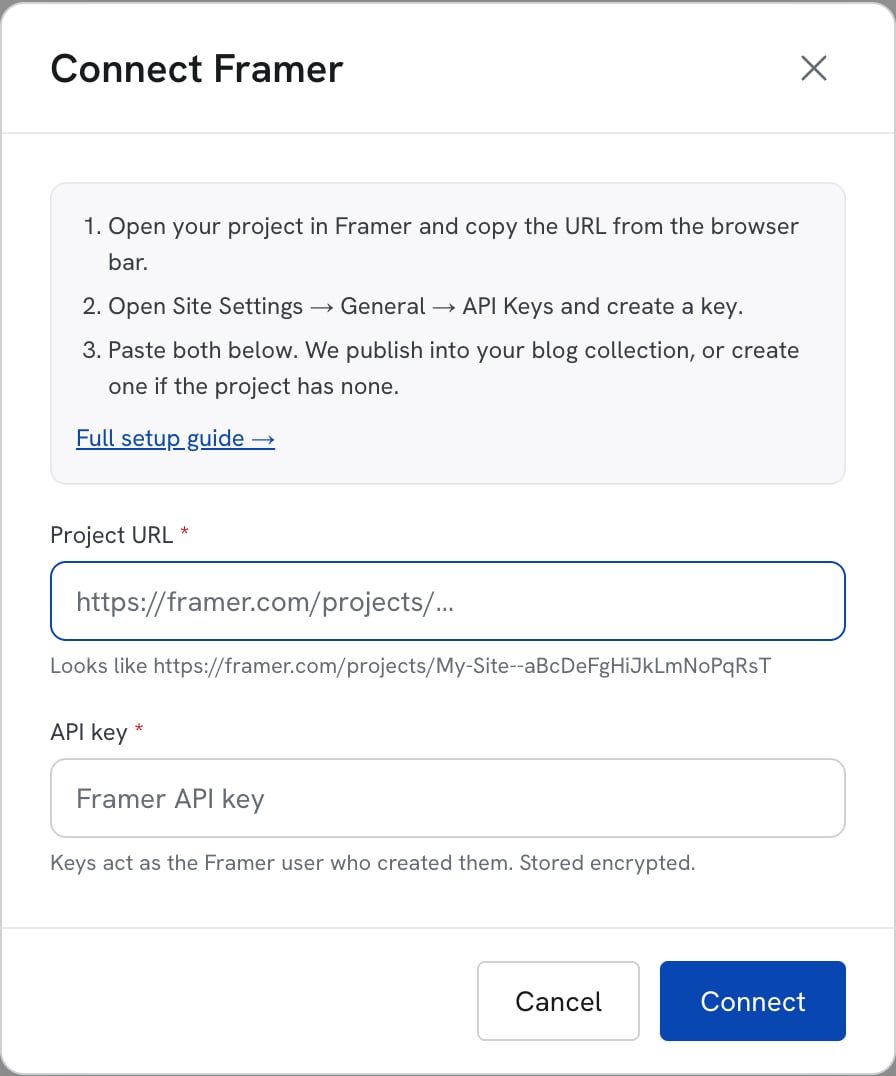 The address from step 1. Any page of the project works; the bare 20-character project id
works too.
The key from step 2. Stored encrypted.
We open a session to your project before saving, so a wrong URL or key fails here.
## Step 4 — Check the collection and fields
When the project has exactly one collection whose name looks like a blog (Blog, Posts,
Articles, Insights, News, Resources…), it's selected and its fields are mapped automatically.
Otherwise the **Configure Framer** dialog opens so you can choose. You can reopen it any time
with **Configure** on the Framer card.
| Setting | What it does |
| - | - |
| **Publish to collection** | The CMS collection articles are added to, or **Create a new “SEOsorted Blog” collection** with every field below. Plugin-managed collections aren't listed — only their plugin can write to them. |
| **Field mapping** | Which of your collection's fields receives each part of the article. **Title** (a text field) and **Article body** (a formatted-text field) are required; anything set to *Don't publish* is left alone. |
| **Blog path** | The path of the collection's detail page, e.g. `/blog`. Used to build the article link we show after publishing. |
| **Publish the site after each article** | Off by default. See below. |
Fields we can fill:
| SeoSorted | Framer field type |
| - | - |
| Title | Plain text |
| Article body | Formatted text (HTML: headings, lists, tables, images, links) |
| Summary | Plain or formatted text |
| Cover image | Image (with alt text) |
| Published date | Date |
| Meta title, Meta description, Author | Plain text |
| Read time | Plain text or number |
## Going live
Framer only serves CMS items after the site is published.
* **Publish the site after each article — off** (default): articles are added to the
collection and wait there. They go live the next time you click **Publish** in Framer.
* **On**: after adding the article we publish and deploy the site for you.
Publishing from SeoSorted publishes **the whole project**, including any unfinished design
changes sitting in it. Turn this on only if the project is kept publish-ready.
## Republishing, unpublishing and deleting
* **Republish** updates the same CMS item — never a duplicate. If the item was deleted in
Framer, a new one is created.
* If the slug is already used by another item in the collection, we add `-2`, `-3`… to keep it
unique.
* **Unpublish** turns the item into a **draft** in Framer.
* **Deleting** the article in SeoSorted removes the CMS item.
## Styling the article
The body arrives as HTML in your formatted-text field, so it takes the styles of the **Content**
layer on your detail page. Select it, and under **Text** set styles for Paragraph, H1–H6, Link,
Blockquote, Code, Image and Table. Enable **Table** if your articles use comparison tables.
## Common problems
The key was deleted or belongs to another project. Create a new key in **Site Settings →
General → API Keys** of this project and reconnect.
Copy the address while the project is open in Framer. It must contain
`/projects/Name--` followed by the 20-character project id.
Collections created by a plugin (they show the plugin's icon under **Synced** in the CMS)
can only be edited by that plugin. Pick another collection, or let us create **SEOsorted
Blog**.
The site hasn't been published since the article was added. Publish in Framer, or turn on
**Publish the site after each article**.
The collection was deleted or renamed into a plugin collection. Open **Configure** on the
Framer card and pick a collection again.
This documentation is built and hosted on [Mintlify](https://mintlify.com), a developer documentation platform.
The address from step 1. Any page of the project works; the bare 20-character project id
works too.
The key from step 2. Stored encrypted.
We open a session to your project before saving, so a wrong URL or key fails here.
## Step 4 — Check the collection and fields
When the project has exactly one collection whose name looks like a blog (Blog, Posts,
Articles, Insights, News, Resources…), it's selected and its fields are mapped automatically.
Otherwise the **Configure Framer** dialog opens so you can choose. You can reopen it any time
with **Configure** on the Framer card.
| Setting | What it does |
| - | - |
| **Publish to collection** | The CMS collection articles are added to, or **Create a new “SEOsorted Blog” collection** with every field below. Plugin-managed collections aren't listed — only their plugin can write to them. |
| **Field mapping** | Which of your collection's fields receives each part of the article. **Title** (a text field) and **Article body** (a formatted-text field) are required; anything set to *Don't publish* is left alone. |
| **Blog path** | The path of the collection's detail page, e.g. `/blog`. Used to build the article link we show after publishing. |
| **Publish the site after each article** | Off by default. See below. |
Fields we can fill:
| SeoSorted | Framer field type |
| - | - |
| Title | Plain text |
| Article body | Formatted text (HTML: headings, lists, tables, images, links) |
| Summary | Plain or formatted text |
| Cover image | Image (with alt text) |
| Published date | Date |
| Meta title, Meta description, Author | Plain text |
| Read time | Plain text or number |
## Going live
Framer only serves CMS items after the site is published.
* **Publish the site after each article — off** (default): articles are added to the
collection and wait there. They go live the next time you click **Publish** in Framer.
* **On**: after adding the article we publish and deploy the site for you.
Publishing from SeoSorted publishes **the whole project**, including any unfinished design
changes sitting in it. Turn this on only if the project is kept publish-ready.
## Republishing, unpublishing and deleting
* **Republish** updates the same CMS item — never a duplicate. If the item was deleted in
Framer, a new one is created.
* If the slug is already used by another item in the collection, we add `-2`, `-3`… to keep it
unique.
* **Unpublish** turns the item into a **draft** in Framer.
* **Deleting** the article in SeoSorted removes the CMS item.
## Styling the article
The body arrives as HTML in your formatted-text field, so it takes the styles of the **Content**
layer on your detail page. Select it, and under **Text** set styles for Paragraph, H1–H6, Link,
Blockquote, Code, Image and Table. Enable **Table** if your articles use comparison tables.
## Common problems
The key was deleted or belongs to another project. Create a new key in **Site Settings →
General → API Keys** of this project and reconnect.
Copy the address while the project is open in Framer. It must contain
`/projects/Name--` followed by the 20-character project id.
Collections created by a plugin (they show the plugin's icon under **Synced** in the CMS)
can only be edited by that plugin. Pick another collection, or let us create **SEOsorted
Blog**.
The site hasn't been published since the article was added. Publish in Framer, or turn on
**Publish the site after each article**.
The collection was deleted or renamed into a plugin collection. Open **Configure** on the
Framer card and pick a collection again.
This documentation is built and hosted on [Mintlify](https://mintlify.com), a developer documentation platform.