> ## Documentation Index
> Fetch the complete documentation index at: https://docs.seosorted.ai/llms.txt
> Use this file to discover all available pages before exploring further.
# Google Analytics 4
> Pull sessions, engagement and conversions so you can see what your content actually did.
Search Console tells you how content performs *in search*. Analytics tells you what happened
*after the click* — sessions, engagement, conversions, and how much of your traffic now arrives
from AI assistants.
We request one scope — `analytics.readonly`. Read-only access to your GA4 reporting data; we
can't change property settings or write events.
## Before you start
You need at least **Viewer** access to the GA4 property. If you only have access to a Universal
Analytics property, it won't appear — UA stopped collecting data in 2023 and has no API we can
read.
## Step 1 — Connect
**Project Settings → Integrations → Google Analytics 4 → Connect**, choose your Google account,
and approve the consent screen. If you see *"Google hasn't verified this app"*, click
**Advanced → Go to seosorted (unsafe)** — the same step as
[Search Console](/connectors/google-search-console).
Search Console and Analytics are separate connectors with separate consent screens, even when
both live on the same Google account.
## Step 2 — Choose the property
Google returns you to a property picker.
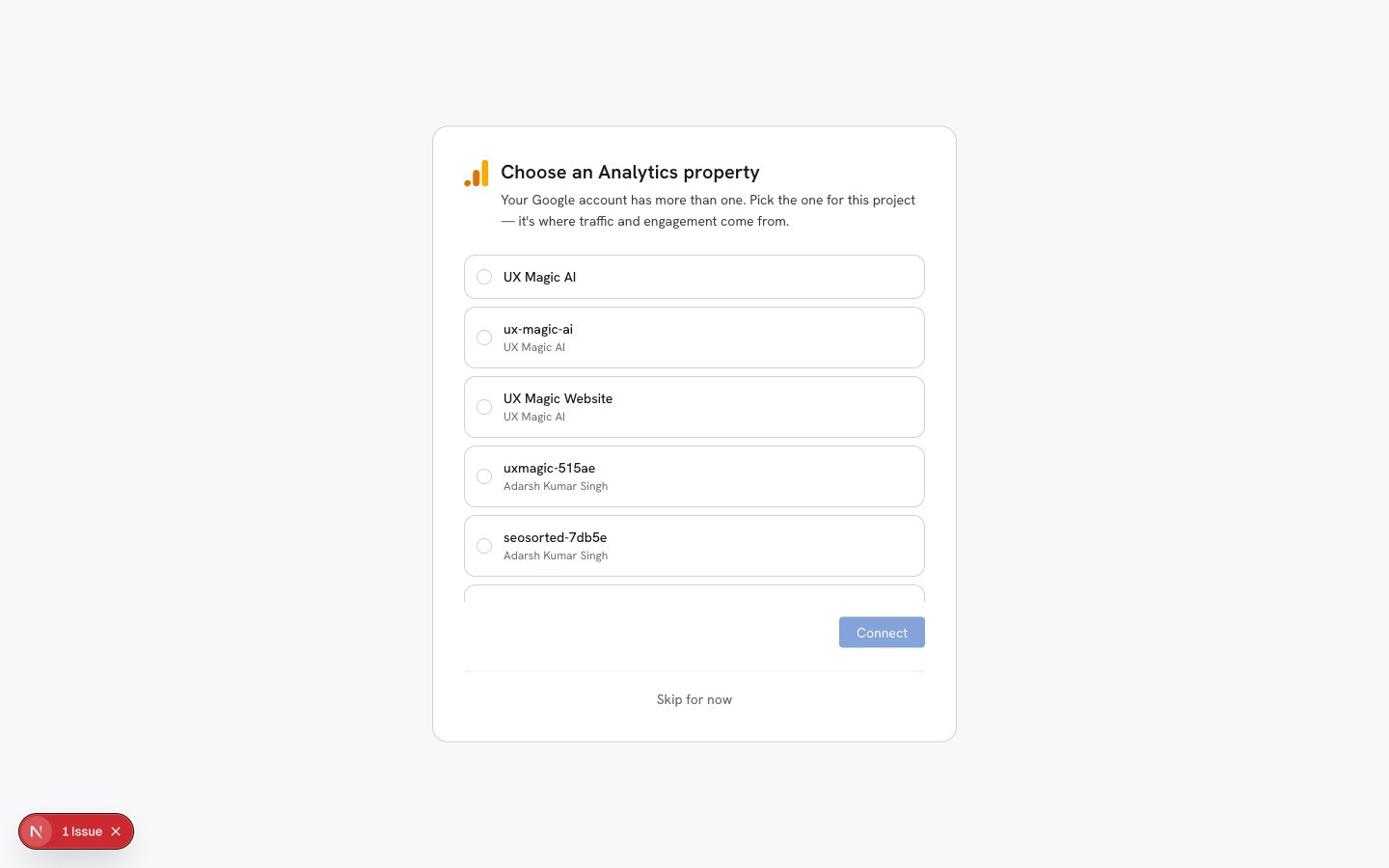 Each row is `property name` above `account name` — useful when an agency account carries a dozen
similarly-named properties. Pick the one that receives traffic from the site this workspace
tracks, then **Connect**.
Pick the **property**, not the account, and make sure it's the one that actually receives your
traffic. A placeholder property (the kind a Firebase project creates automatically) connects
fine and then syncs zero rows forever.
Nothing is preselected unless it matches your workspace domain or is the only property on the
account — so **Connect** stays disabled until you make a deliberate choice.
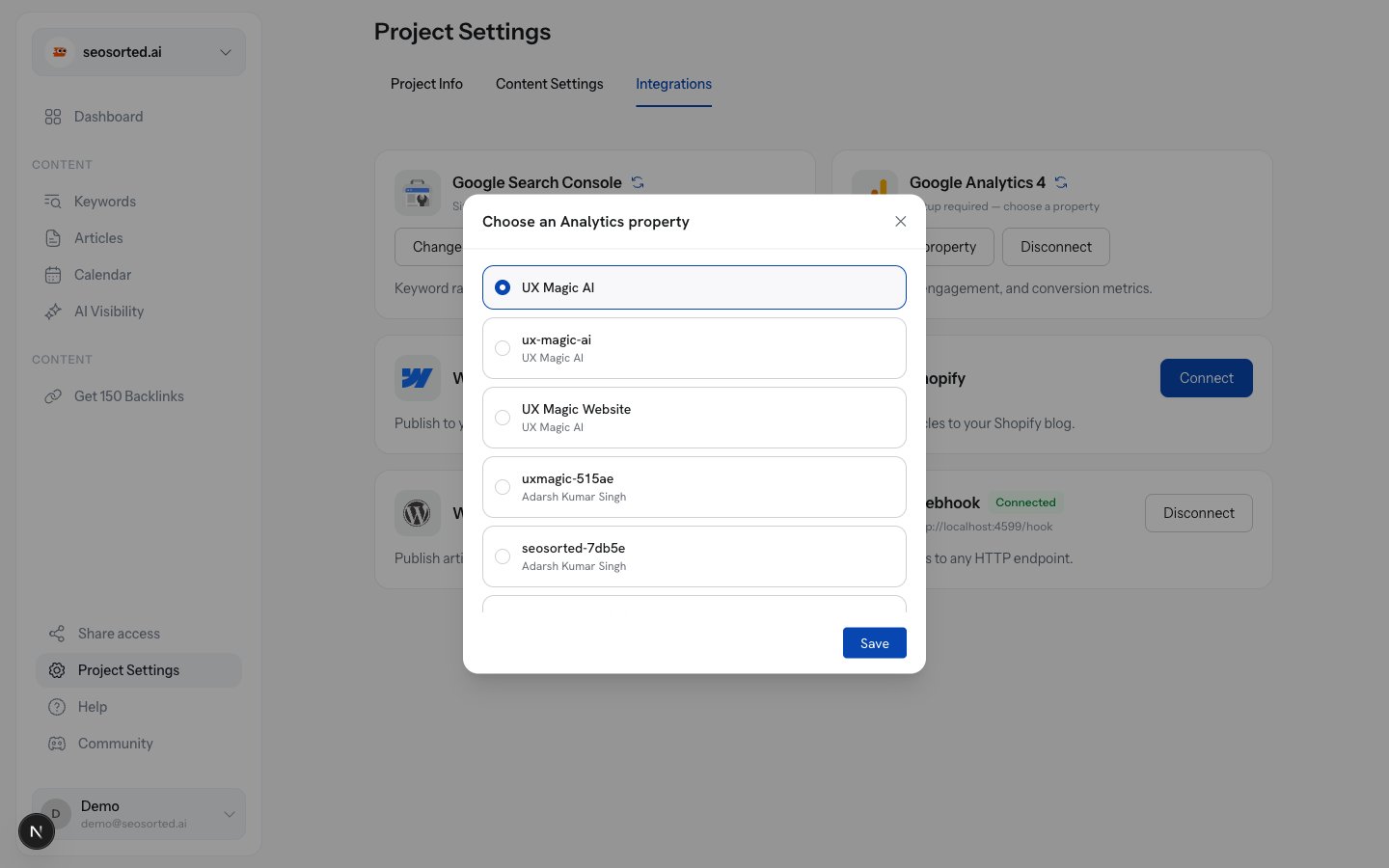
You can change it later from **Change property** on the Integrations tab.
Each row is `property name` above `account name` — useful when an agency account carries a dozen
similarly-named properties. Pick the one that receives traffic from the site this workspace
tracks, then **Connect**.
Pick the **property**, not the account, and make sure it's the one that actually receives your
traffic. A placeholder property (the kind a Firebase project creates automatically) connects
fine and then syncs zero rows forever.
Nothing is preselected unless it matches your workspace domain or is the only property on the
account — so **Connect** stays disabled until you make a deliberate choice.
You can change it later from **Change property** on the Integrations tab.
 ## Step 3 — Sync
The first sync backfills **28 days** and then runs **every 24 hours**. Use the ↻ icon for an
on-demand sync; the completion toast reports how many rows landed:
```
Google Analytics 4 sync finished — 1,284 rows updated.
```
If it reports `no new rows for this property yet`, the connector worked and the property has no
data in the window — you almost certainly picked the wrong property.
## What you get
* **Traffic trend** — daily pageviews against AI-referred visits
* **Engagement metrics** — sessions, engaged sessions, conversions
* **Per-article attribution** — traffic mapped to the articles that earned it
* **AI referral tracking** — visits arriving from ChatGPT, Perplexity, Claude and friends
GA4 needs 24–48 hours after property creation before its API returns anything. A new property
will sync clean and empty until then.
## Step 3 — Sync
The first sync backfills **28 days** and then runs **every 24 hours**. Use the ↻ icon for an
on-demand sync; the completion toast reports how many rows landed:
```
Google Analytics 4 sync finished — 1,284 rows updated.
```
If it reports `no new rows for this property yet`, the connector worked and the property has no
data in the window — you almost certainly picked the wrong property.
## What you get
* **Traffic trend** — daily pageviews against AI-referred visits
* **Engagement metrics** — sessions, engaged sessions, conversions
* **Per-article attribution** — traffic mapped to the articles that earned it
* **AI referral tracking** — visits arriving from ChatGPT, Perplexity, Claude and friends
GA4 needs 24–48 hours after property creation before its API returns anything. A new property
will sync clean and empty until then.