> ## Documentation Index
> Fetch the complete documentation index at: https://docs.seosorted.ai/llms.txt
> Use this file to discover all available pages before exploring further.
# How publishing works
> What happens between clicking Publish and the article appearing on your site.
Publishing is the same three clicks whichever destination you use. What differs is what the
destination gives back.
## Publishing an article
Open a finished article and click **Publish** in the top-right corner.
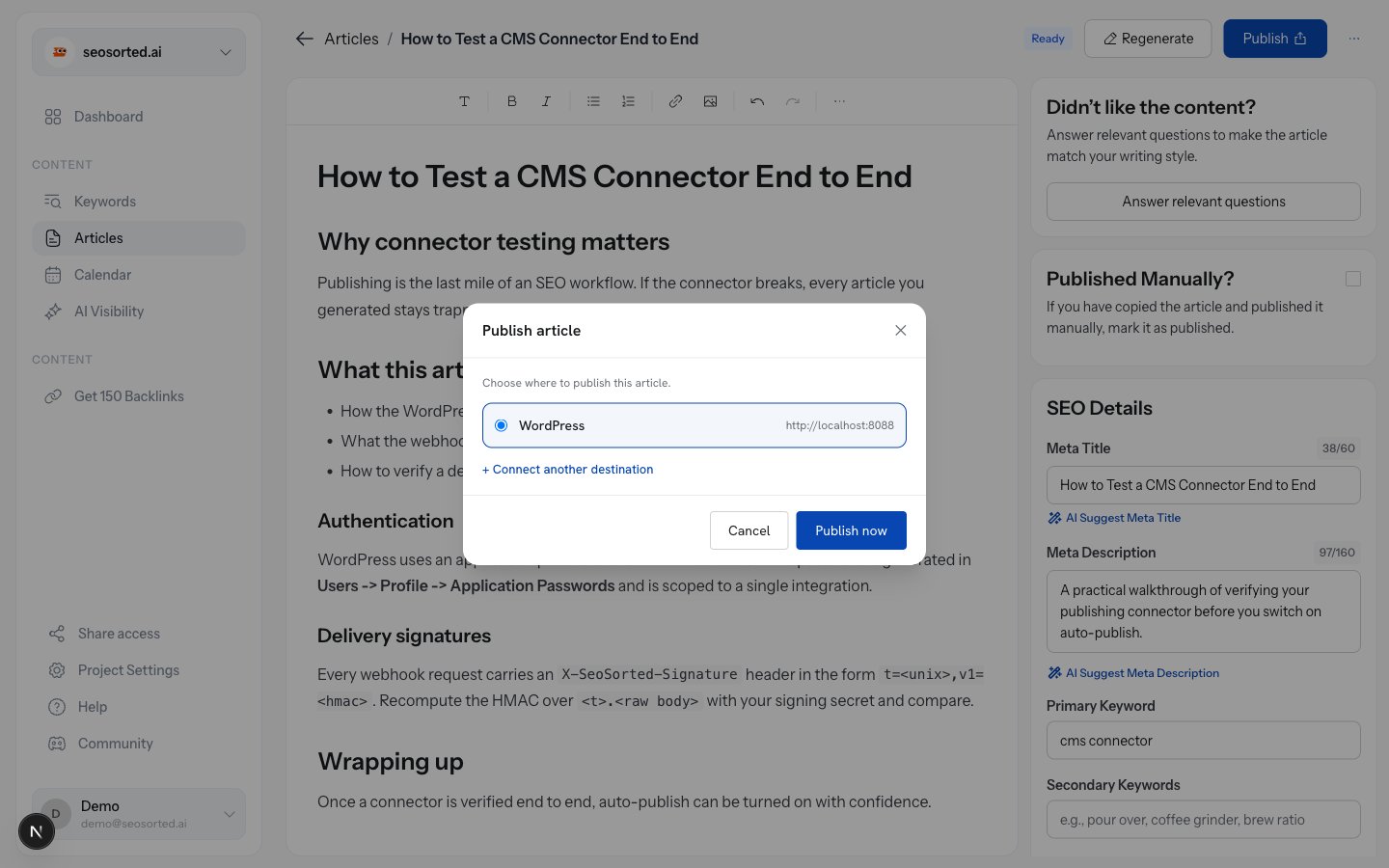 Every connected publishing destination is listed. Pick one and click **Publish now**.
Only publishing destinations appear here — WordPress, Webflow, Shopify and Webhook. Search
Console and Analytics are data sources; they never receive content.
Publishing is queued, not instant: the request returns a job and the dialog waits for it. A
typical publish takes a few seconds — longer when a featured image has to be uploaded.
## Confirmation
Return a public URL, so the dialog links straight to the live post.
Have no public URL — a webhook is your own endpoint, Webflow items need a site publish — so
the dialog confirms delivery instead.
Every connected publishing destination is listed. Pick one and click **Publish now**.
Only publishing destinations appear here — WordPress, Webflow, Shopify and Webhook. Search
Console and Analytics are data sources; they never receive content.
Publishing is queued, not instant: the request returns a job and the dialog waits for it. A
typical publish takes a few seconds — longer when a featured image has to be uploaded.
## Confirmation
Return a public URL, so the dialog links straight to the live post.
Have no public URL — a webhook is your own endpoint, Webflow items need a site publish — so
the dialog confirms delivery instead.
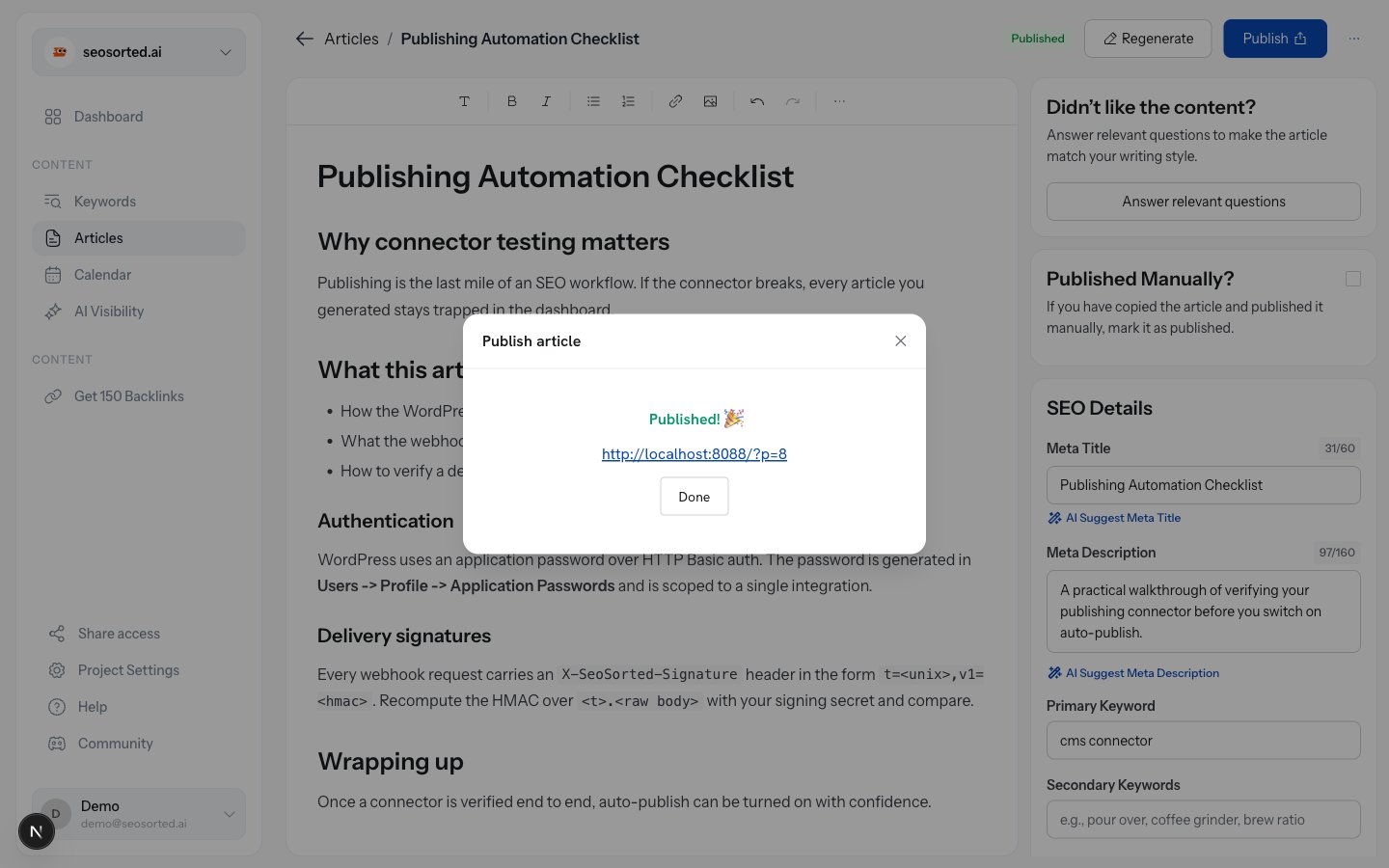
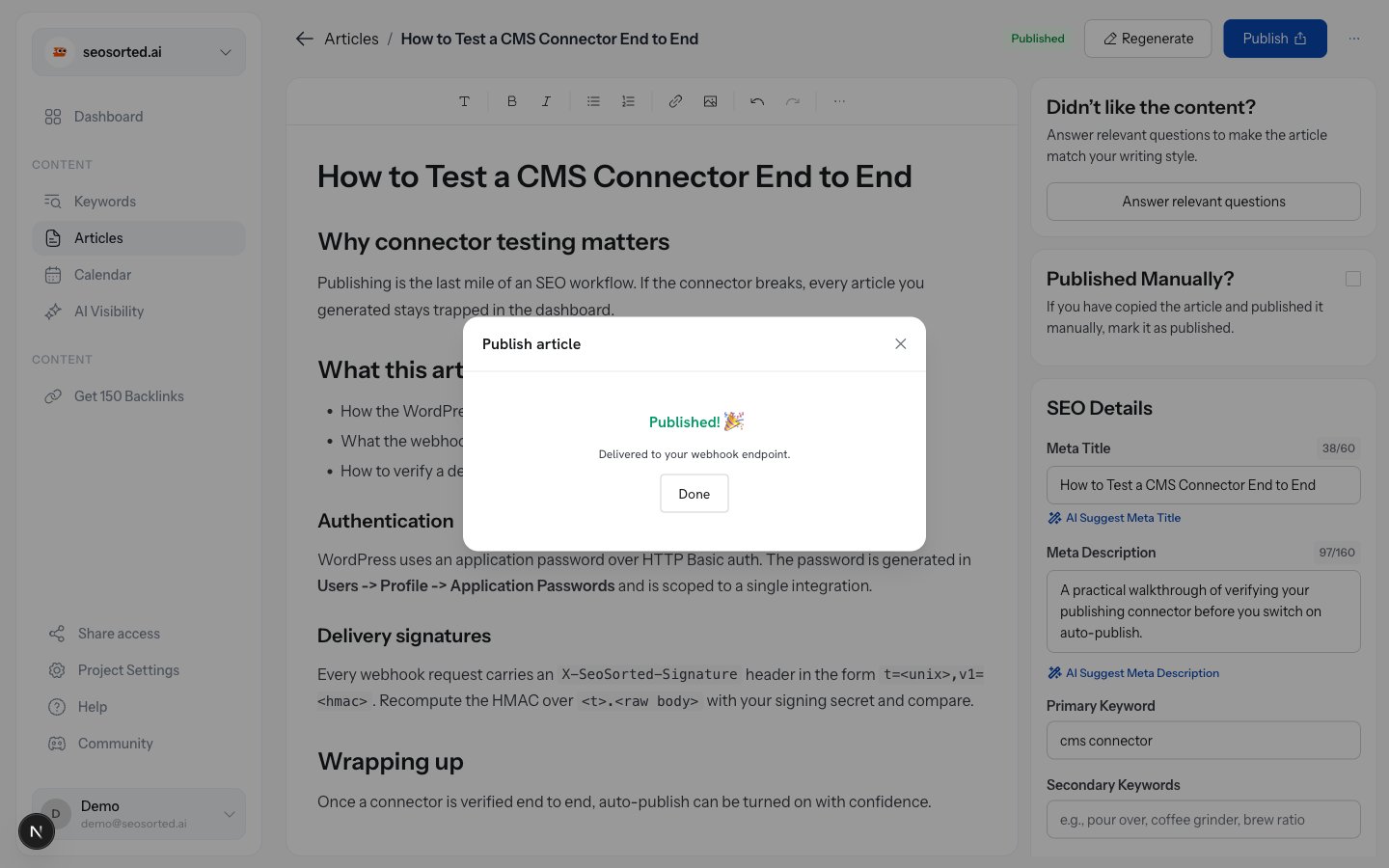 Either way the article moves to **Published** and appears under the Published tab.
## What gets sent
Whatever the destination, we send the same article:
* **Title** and **slug**
* **Body**, rendered from Markdown to HTML, with JSON-LD article schema prepended
* **Meta description** as the excerpt/summary
* **Featured image**, where the destination supports one
* **Author** — the article's author persona, falling back to your workspace name
Destination-specific mapping is documented on each connector's page.
## Scheduling and auto-publish
Articles can also publish on a schedule instead of on demand:
* **Add to calendar** on any article sets the date it should go out.
* When that time arrives, a background job publishes it to the article's own destination if it
has one, otherwise to the workspace's default publishing destination.
* **Auto-publish**, set during onboarding or in project settings, sends newly generated articles
out without a manual step.
Scheduled and auto-publish runs need a **connected** destination and an active paid plan at the
time they fire. If the connector was disconnected — or a delivery keeps failing and the
connector flipped to **Error** — the scheduled article stays where it is instead of publishing.
Check the Integrations tab if a scheduled post doesn't appear.
## Publishing the same article twice
Publishing again creates a **new** item at the destination rather than updating the previous
one — with one exception: the webhook connector sends `article.updated` instead of
`article.published`, so your own handler can upsert on `article.id`.
Either way the article moves to **Published** and appears under the Published tab.
## What gets sent
Whatever the destination, we send the same article:
* **Title** and **slug**
* **Body**, rendered from Markdown to HTML, with JSON-LD article schema prepended
* **Meta description** as the excerpt/summary
* **Featured image**, where the destination supports one
* **Author** — the article's author persona, falling back to your workspace name
Destination-specific mapping is documented on each connector's page.
## Scheduling and auto-publish
Articles can also publish on a schedule instead of on demand:
* **Add to calendar** on any article sets the date it should go out.
* When that time arrives, a background job publishes it to the article's own destination if it
has one, otherwise to the workspace's default publishing destination.
* **Auto-publish**, set during onboarding or in project settings, sends newly generated articles
out without a manual step.
Scheduled and auto-publish runs need a **connected** destination and an active paid plan at the
time they fire. If the connector was disconnected — or a delivery keeps failing and the
connector flipped to **Error** — the scheduled article stays where it is instead of publishing.
Check the Integrations tab if a scheduled post doesn't appear.
## Publishing the same article twice
Publishing again creates a **new** item at the destination rather than updating the previous
one — with one exception: the webhook connector sends `article.updated` instead of
`article.published`, so your own handler can upsert on `article.id`.