

We request one scope —
analytics.readonly. Read-only access to your GA4 reporting data; we
can’t change property settings or write events.Before you start
You need at least Viewer access to the GA4 property. If you only have access to a Universal Analytics property, it won’t appear — UA stopped collecting data in 2023 and has no API we can read.Step 1 — Connect
Project Settings → Integrations → Google Analytics 4 → Connect, choose your Google account, and approve the consent screen. If you see “Google hasn’t verified this app”, click Advanced → Go to seosorted (unsafe) — the same step as Search Console. Search Console and Analytics are separate connectors with separate consent screens, even when both live on the same Google account.Step 2 — Choose the property
Google returns you to a property picker.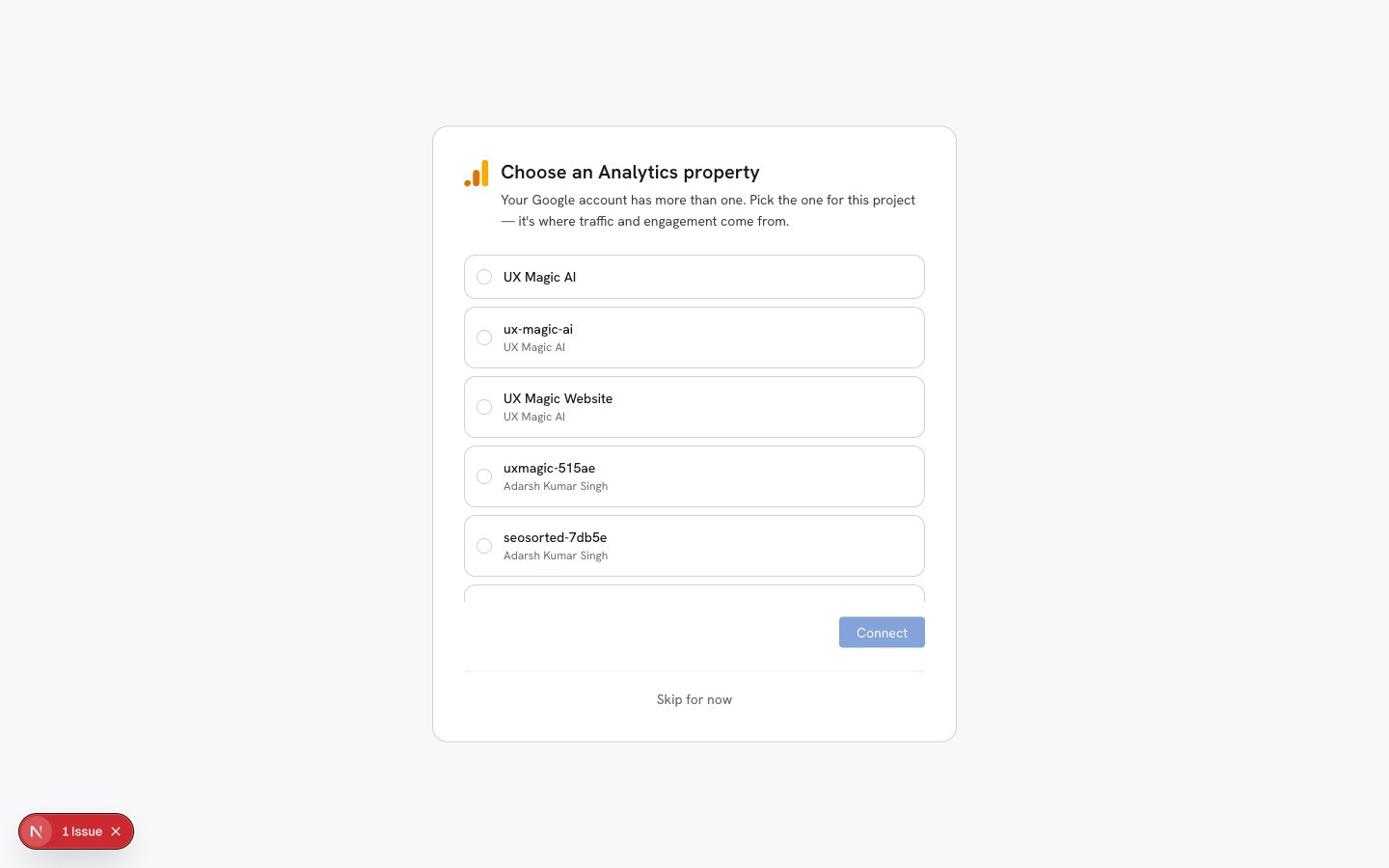
Every GA4 property on the account, with its parent account underneath
property name above account name — useful when an agency account carries a dozen
similarly-named properties. Pick the one that receives traffic from the site this workspace
tracks, then Connect.
You can change it later from Change property on the Integrations tab.
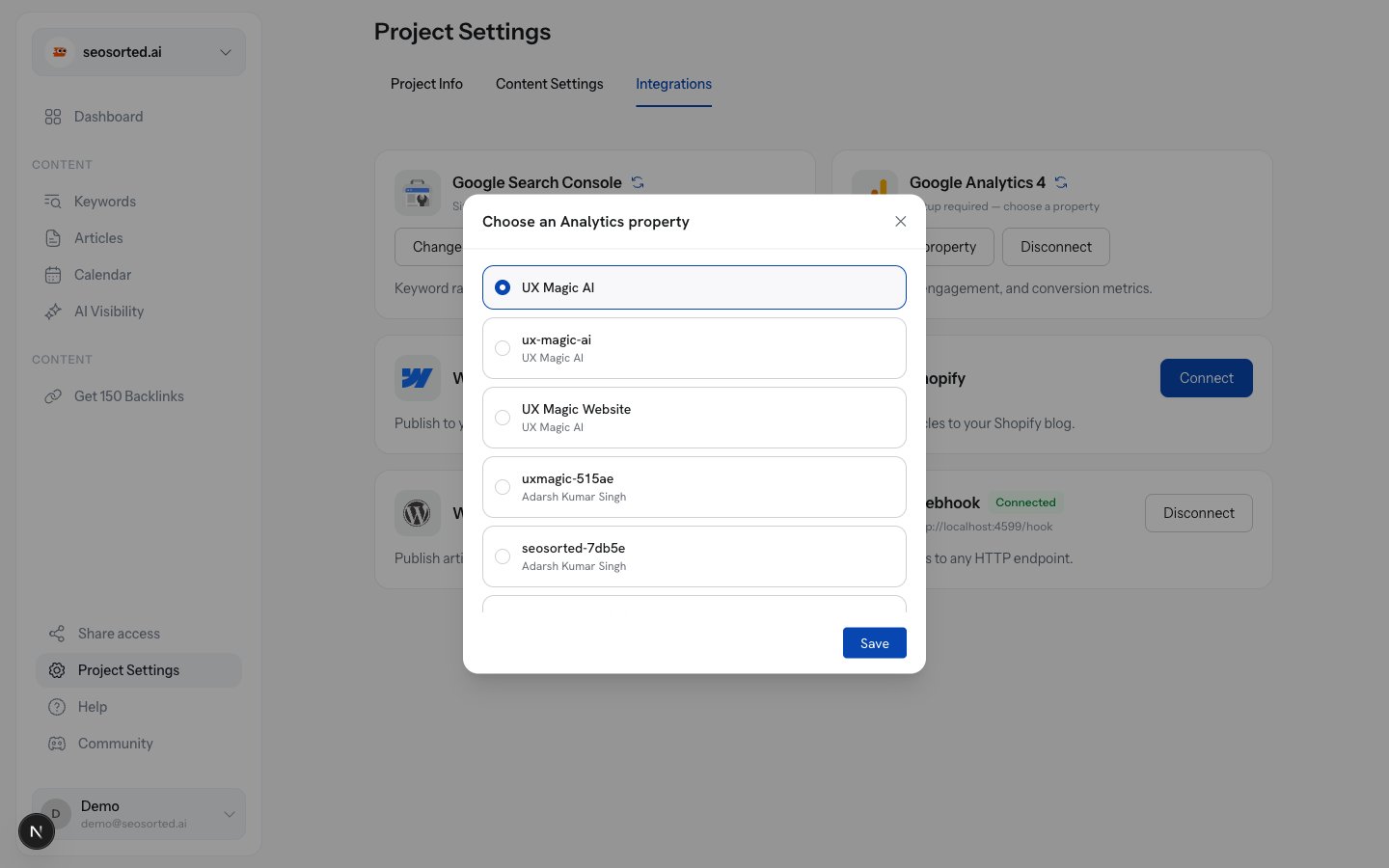
Changing the property later
Step 3 — Sync
The first sync backfills 28 days and then runs every 24 hours. Use the ↻ icon for an on-demand sync; the completion toast reports how many rows landed:no new rows for this property yet, the connector worked and the property has no
data in the window — you almost certainly picked the wrong property.
What you get
- Traffic trend — daily pageviews against AI-referred visits
- Engagement metrics — sessions, engaged sessions, conversions
- Per-article attribution — traffic mapped to the articles that earned it
- AI referral tracking — visits arriving from ChatGPT, Perplexity, Claude and friends
GA4 needs 24–48 hours after property creation before its API returns anything. A new property
will sync clean and empty until then.