

Works with any WooCommerce store whose WordPress REST API is reachable, either self-hosted or
on a managed host such as WordPress.com Business. Requires WordPress 5.6 or newer, the first
version with application passwords.
Before you start
- WooCommerce must be active on the site. When you connect, we check for it and refuse the connection if it isn’t active.
- You need a WordPress user that can publish posts: Author, Editor, Administrator or Shop manager. Posts are created as that user.
- The store must be served over HTTPS, because WordPress hides application passwords on sites that aren’t.
WooCommerce’s own REST API keys (WooCommerce → Settings → Advanced → REST API, the keys
that start with
ck_ and cs_) only work for products and orders. They can’t create blog
posts, so this connector doesn’t use them. Use an application password as described below.Step 1: Create an application password
- Sign in to your store’s WordPress admin (
https://yourstore.com/wp-admin) and open Users → Profile.
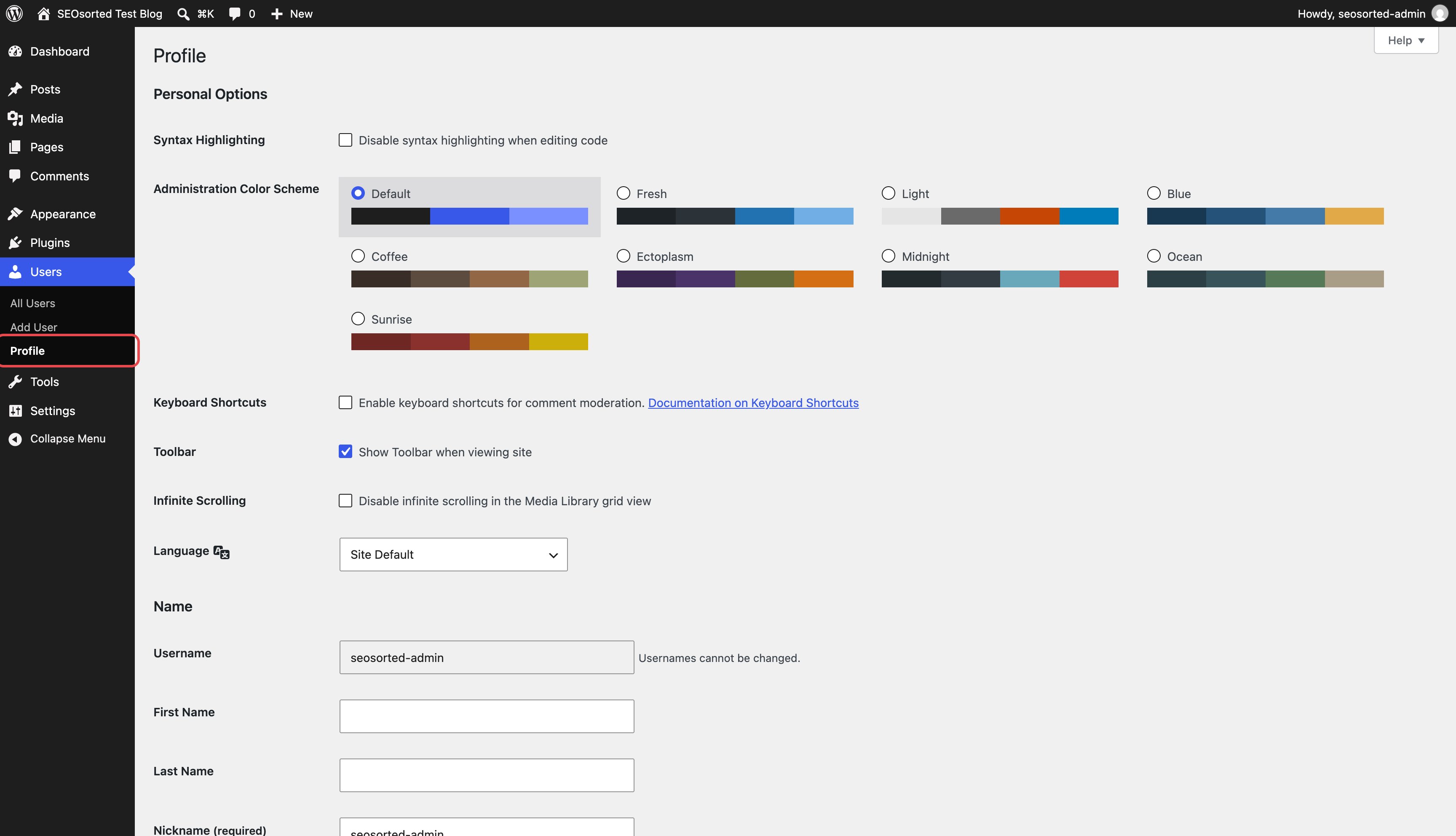
Users → Profile
- Scroll to Application Passwords. Enter a name you’ll recognise later, such as
SEOsorted, and click Add Application Password.
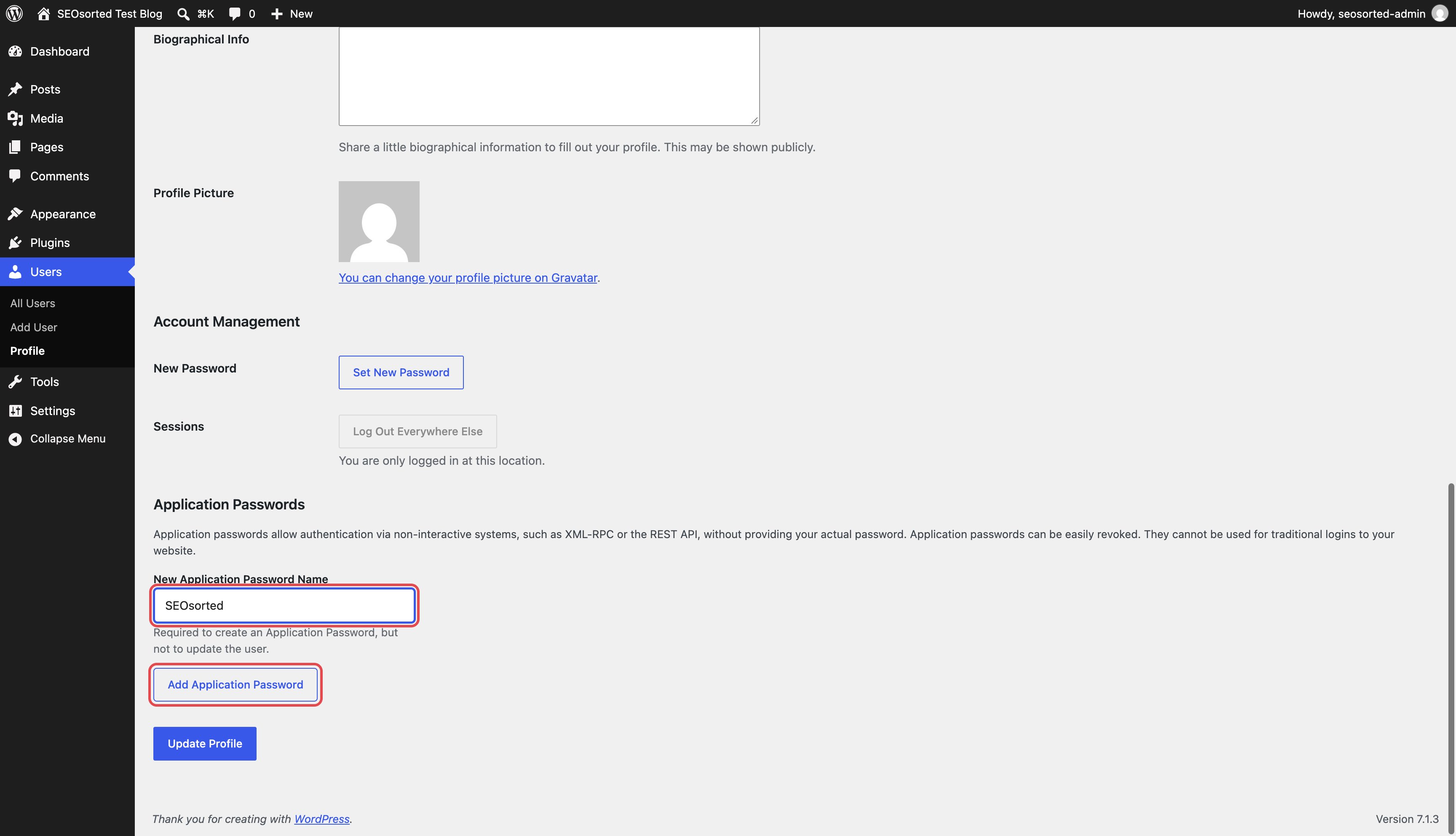
Name the password, then add it
- WordPress shows the new password only once, in groups of four characters. Click Copy.
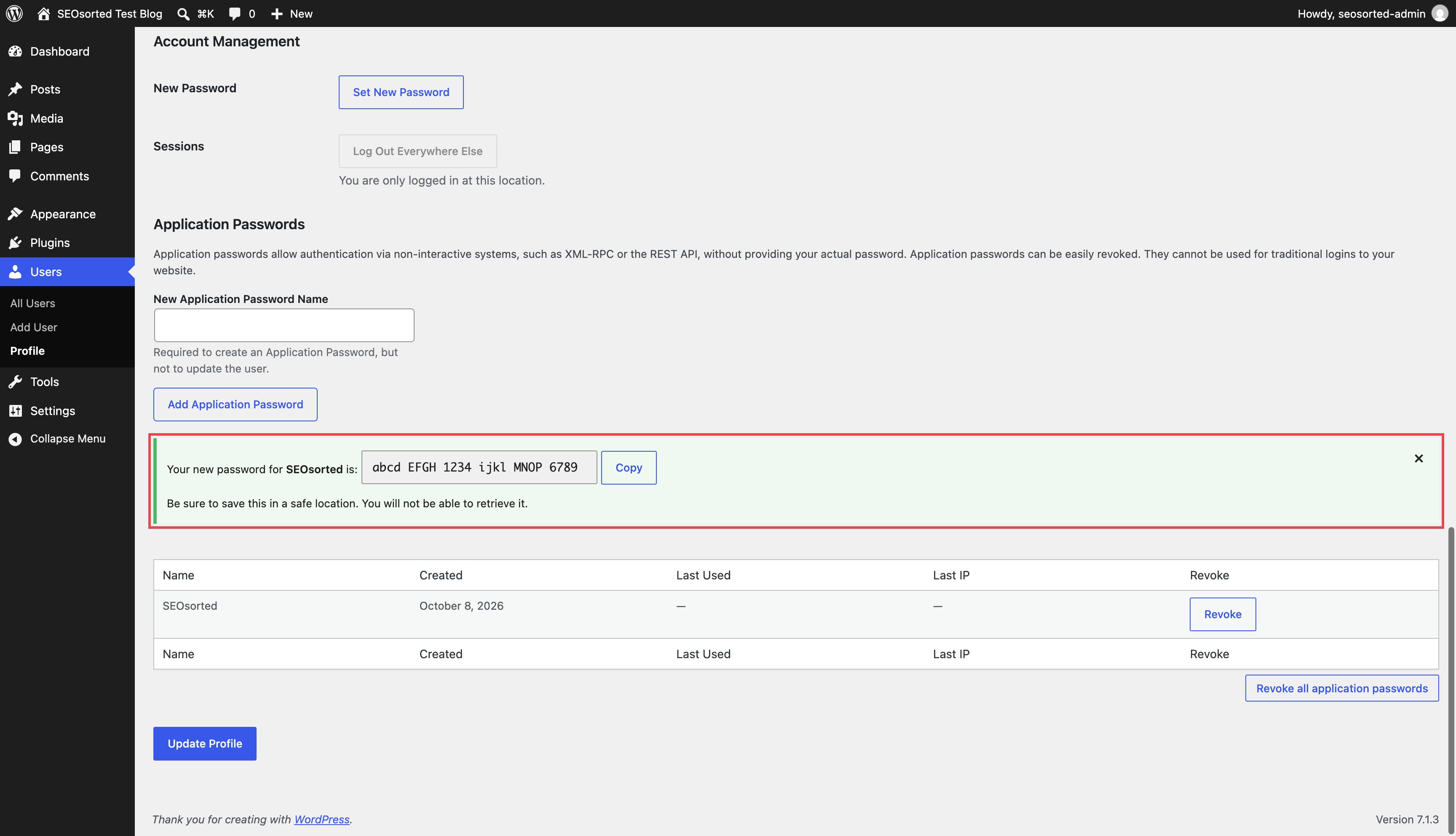
Copy the password now. WordPress won't show it again
Don't see an Application Passwords section?
Don't see an Application Passwords section?
WordPress hides it when the site isn’t served over HTTPS, because the credential is sent as a
basic-auth header. Some security plugins (Wordfence, SolidWP) also turn application passwords
or the REST API off. Look for a “REST API” or “Application Passwords” setting in the plugin.
Step 2: Connect in SeoSorted
Go to Project Settings → Integrations → WooCommerce → Connect.string
required
Your store’s home page, for example
https://yourstore.com. You can paste the admin URL
(https://yourstore.com/wp-admin/) instead: we remove the /wp-admin part, and add
https:// if it’s missing.string
required
The WordPress username that the application password belongs to. Use the login name, not
the display name or email address.
string
required
The password from step 1. You can paste it with or without the spaces.
Step 3: Map fields (optional)
By default, every article fills the standard post fields listed below. If your theme or plugins add fields of their own, such as ACF fields, custom meta or taxonomies, open the WooCommerce card’s ⋮ menu and choose Configure. The Map WooCommerce fields dialog lists every field your site accepts over the REST API. Fill each one from an article field, or with a fixed value that applies to every post, then save. This works the same way as WordPress field mapping.Step 4: Publish
Open a finished article, click Publish, and click Publish now next to WooCommerce. When the job finishes, the dialog shows Article Published and a View article button that opens the live post.What gets published
Posts are created with status publish, authored by the connected user, in your default category.
Anything you set in Map WooCommerce fields is written too.
Re-publishing, unpublishing and deleting
- Re-publish updates the same post in place.
- Unpublish changes the post back to Draft. Publishing the article again after that creates a new post; the old draft stays in WordPress until you remove it.
- Deleting the article in SeoSorted deletes the post permanently. It skips the trash, so you can’t restore it from WordPress.
WooCommerce or WordPress?
Both connectors publish to the same place: the site’s WordPress posts. Use the WooCommerce connector for a store, because it checks that WooCommerce is active and labels the store as WooCommerce throughout SeoSorted. A workspace can have only one of each connector, so if you’ve already connected the store as WordPress, there’s no need to connect it again.Common problems
“WooCommerce isn't active on …”
“WooCommerce isn't active on …”
The username and password worked, but the site doesn’t expose WooCommerce’s REST API.
Activate the WooCommerce plugin (Plugins → Installed Plugins) and connect again. If the
site isn’t a store, connect it as WordPress instead.
“WordPress rejected those credentials…”
“WordPress rejected those credentials…”
We reached your store’s REST API but it refused the login. Check that you entered the
username, not the email address, and paste a new application password. A password that
lost a character when it was copied is the usual cause.
“… refused the request before checking credentials…”
“… refused the request before checking credentials…”
Something in front of WordPress (a security plugin, your host’s firewall or Cloudflare bot
protection) returned
403 before WordPress checked the password. Allow requests to
/wp-json/ from SeoSorted (our user agent contains SeoSorted/1.0), then connect again.“Couldn't reach the WordPress REST API at …”
“Couldn't reach the WordPress REST API at …”
Neither
/wp-json/ nor ?rest_route= returned JSON. To check, open
https://yourstore.com/wp-json/ in a browser. You should see JSON that lists wc/v3 among
its namespaces, not a login page or an error.Published, but the post redirects to a “Coming soon” page
Published, but the post redirects to a “Coming soon” page
The store is in Coming soon mode, which hides every page from visitors who aren’t logged
in. Switch it to Live in WooCommerce → Settings → Site visibility.
I pasted a ck_ / cs_ key and it didn't work
I pasted a ck_ / cs_ key and it didn't work
Those are WooCommerce REST API keys, and they can’t create blog posts. Create an application
password instead, as described in Step 1.