

Publishing destinations
Where finished articles go: WordPress, Webflow, Shopify, or any HTTP endpoint via a webhook.
Analytics sources
Where performance data comes from: Google Search Console and Google Analytics 4.
Where to find them
Open your workspace, then Project Settings → Integrations.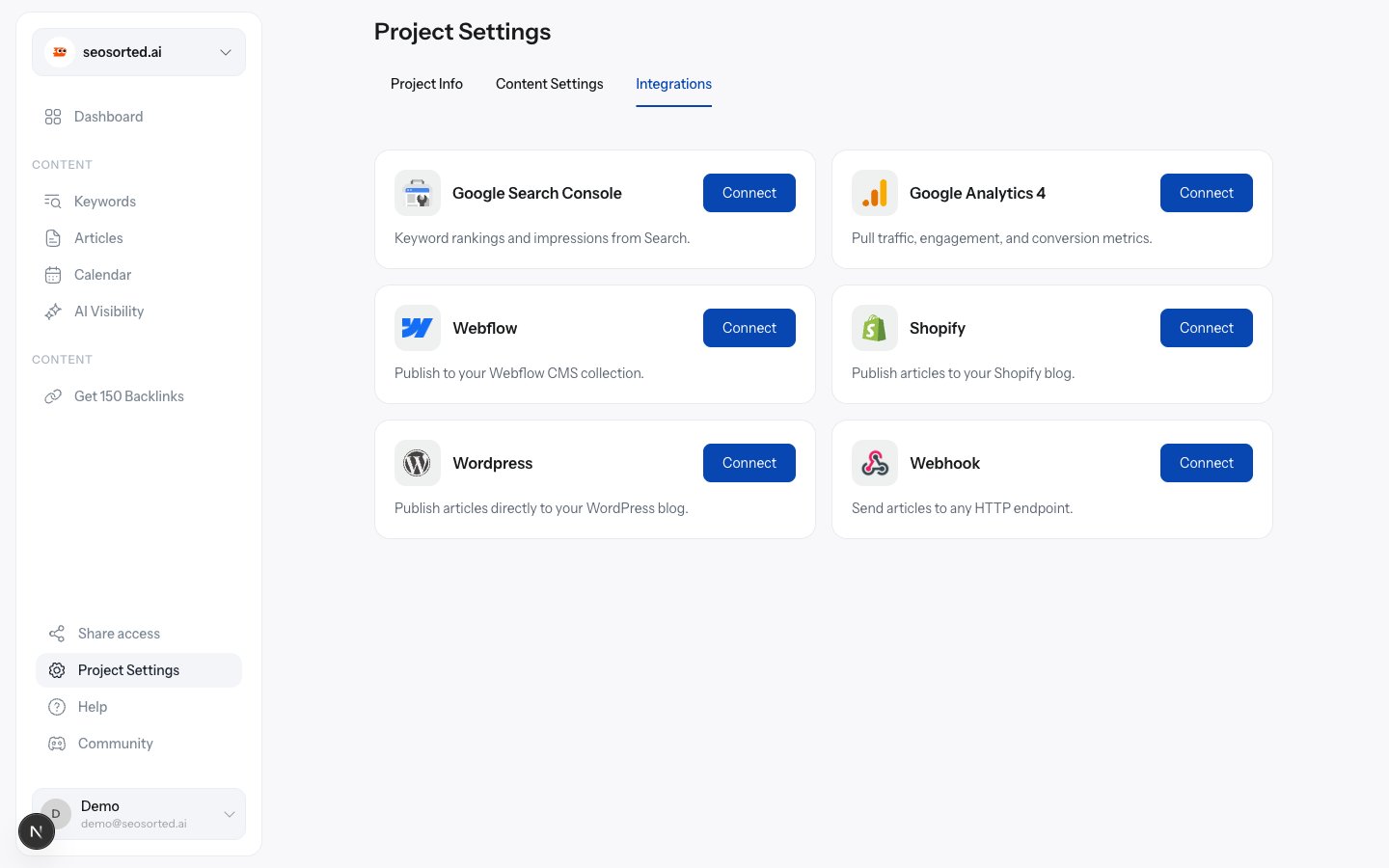
Project Settings → Integrations, before anything is connected
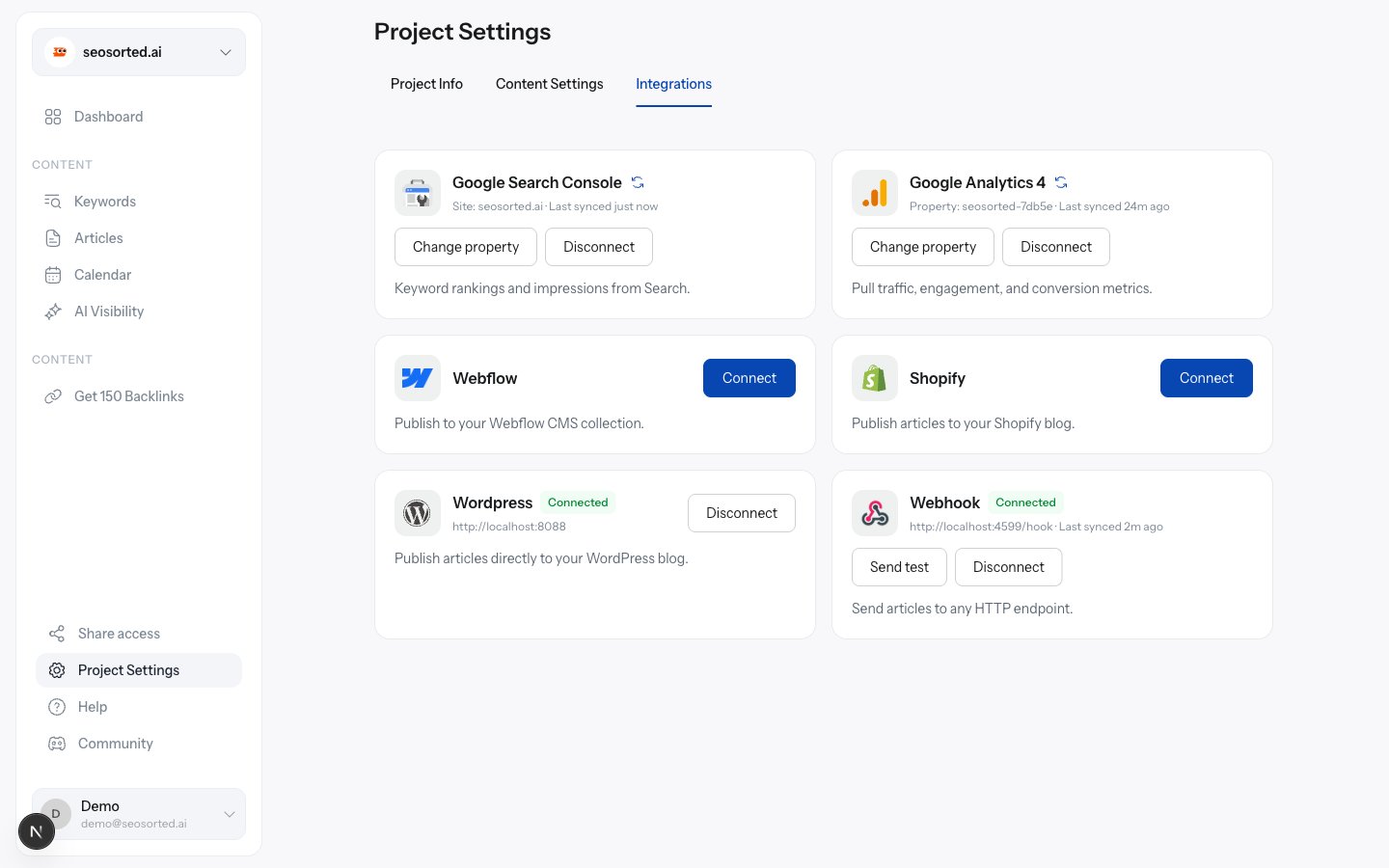
The same tab with WordPress, Webhook, Search Console and Analytics connected
What you need before you start
A workspace on a paid plan
A workspace on a paid plan
Connecting a CMS or analytics source, and publishing to it, are Pro features. On the Free
plan the Connect button returns “Connecting a CMS or analytics integration is a Pro feature.
Upgrade to continue.”
Admin access to the workspace
Admin access to the workspace
Only workspace Admins and Owners can connect or disconnect. Editors can publish to a
connector that already exists.
Admin access on the other side
Admin access on the other side
You need an account that can create content on the destination — a WordPress user who can
publish posts, a Webflow site with CMS access, a Shopify store you can install apps on.
One connector per kind, per workspace
A workspace holds at most one connector of each kind. Connecting WordPress again replaces the stored credentials rather than adding a second site. To publish to two WordPress sites, use two workspaces.Disconnecting
Click Disconnect on any connected card and confirm. The dialog spells out what stops working.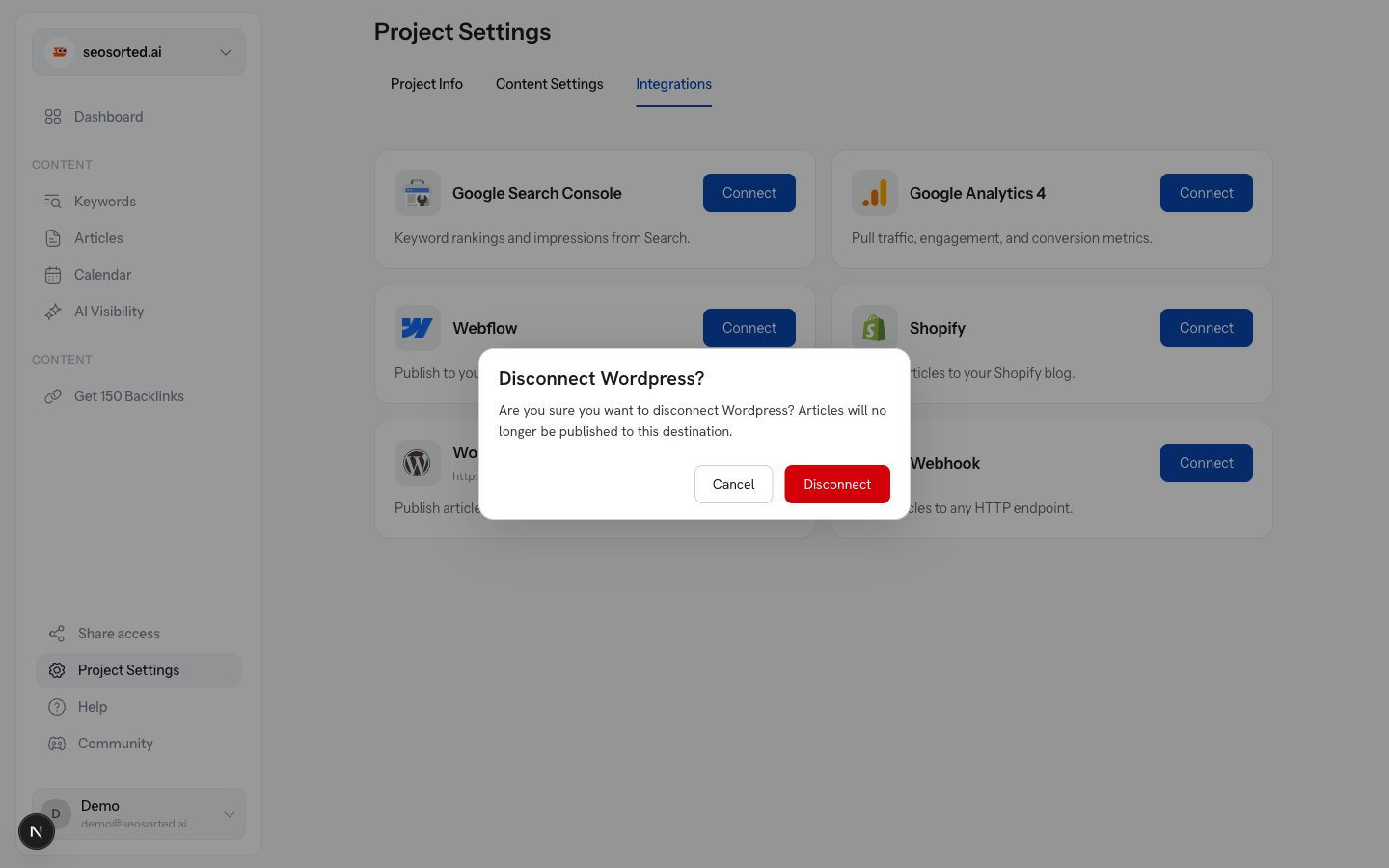
Disconnecting asks for confirmation and names the consequence